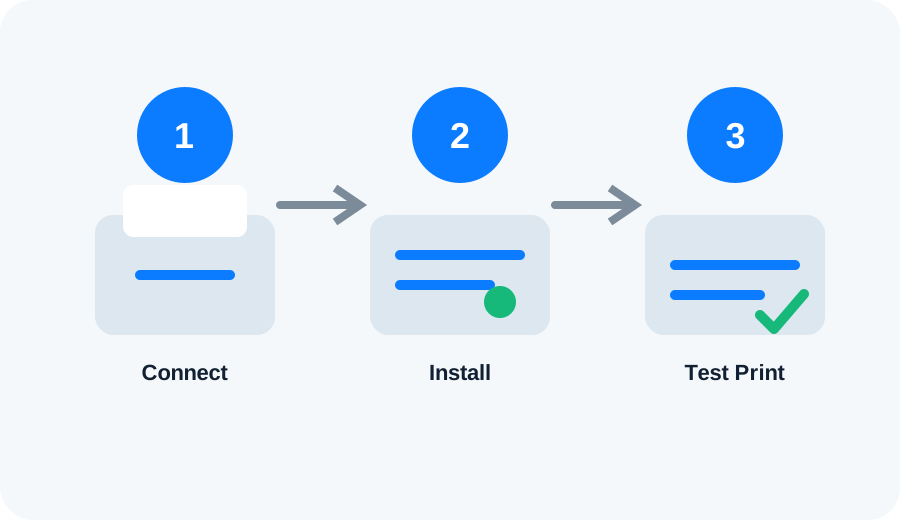
What this guide covers: Connect the printer to wireless, add it to Windows, and verify the network path.
Prepare the Brother MFC-J4335DW
Turn the printer on, have the Wi‑Fi password available, and check whether your router uses a 2.4 GHz network, 5 GHz network, or both. Printer wireless support varies by model.
Connect to Wi‑Fi
Use the printer's wireless setup menu or the official Brother setup utility. After joining the network, print a network status page if the model provides one.
Add it to Windows
Open Settings → Bluetooth & devices → Printers & scanners → Add device. If discovery fails, verify that the computer and printer are on the same network and temporarily disconnect any VPN while testing.
Verify
Send a small test page. If the printer works immediately after setup but becomes offline later, investigate IP-address changes, router isolation or sleep/network settings.