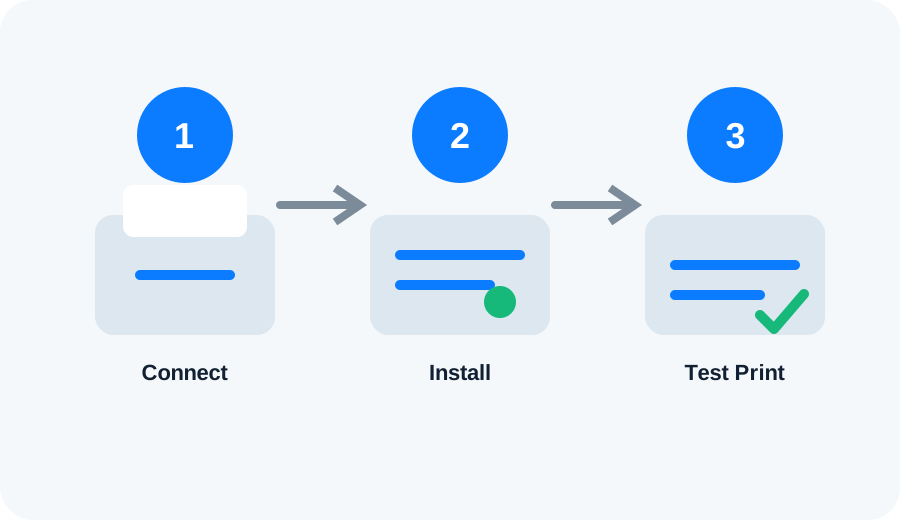
Confirm that the scanner is installed
Many all-in-one printers install printing and scanning components separately. Open your printer manufacturer's app or Windows scanner settings and confirm that the scanner is detected.
Check the connection
For Wi-Fi devices, keep the computer and printer on the same network. For USB devices, reconnect the cable directly to the computer and avoid a faulty hub while testing.
Update the printer software
Install the latest supported printer/scanner software from the manufacturer's official website or use Windows' supported driver mechanisms. Reboot after a major software installation if requested.
Check permissions and apps
If the scanner works in the manufacturer's app but not another application, the issue may be application-specific. Try scanning a simple document from the manufacturer's utility first.